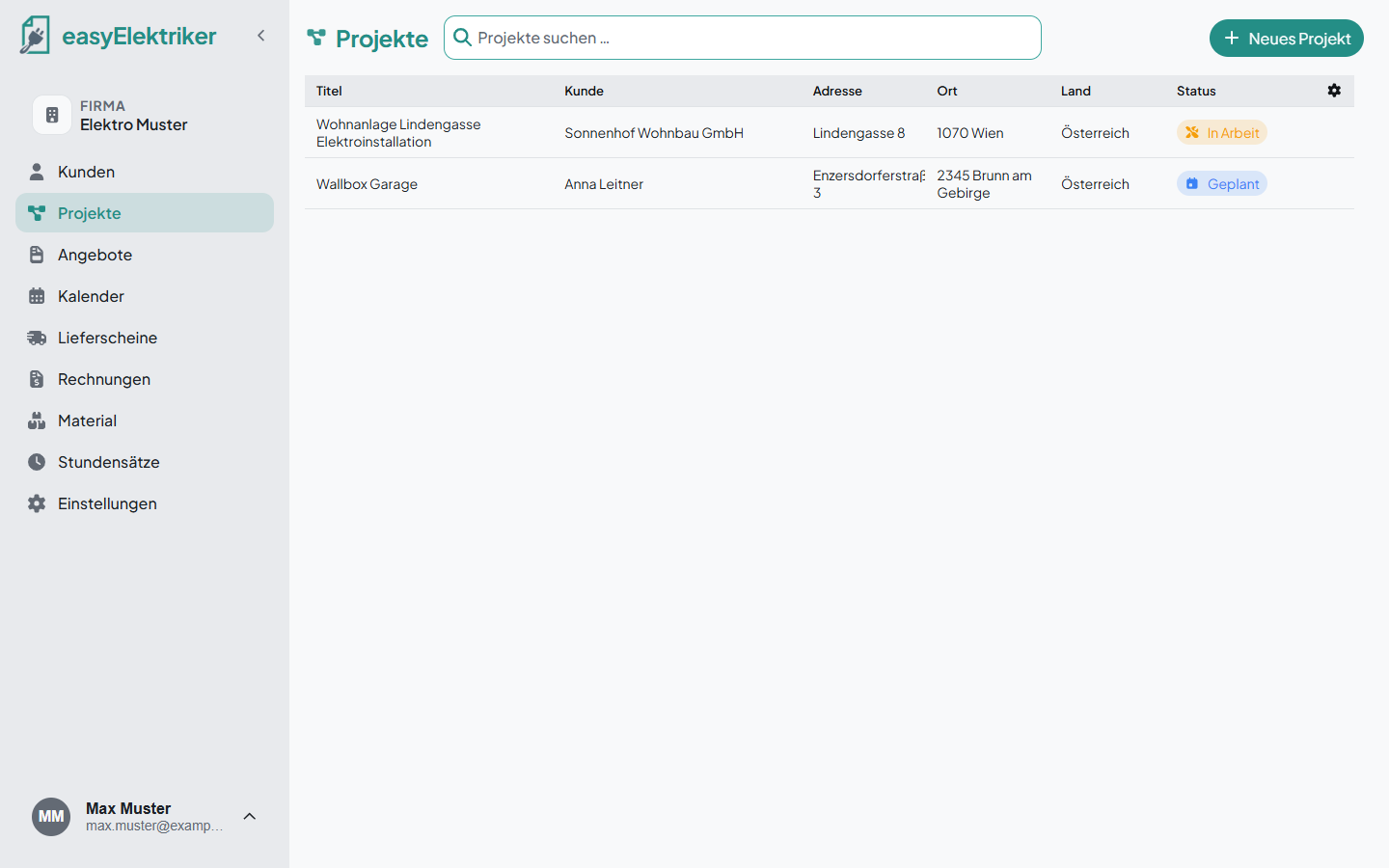
A project is your place for a job. Quotes, appointments, delivery notes, material, invoices and photos are all kept there. All you need to create one is the customer and a title. It doesn't get any easier.
Simply never forget anything: A project keeps everything together. That way you can't forget anything when invoicing!
Open „Projekte“ in the menu on the left and click „Neues Projekt“.
Choose the customer.
Enter a title, for example „Stiegenhausbeleuchtung LED“ (LED stairwell lighting). Everything else is optional.
Click „Projekt hinzufügen“.
Simply handy: The customer's address is filled in automatically. If the job site is somewhere else, just change it.
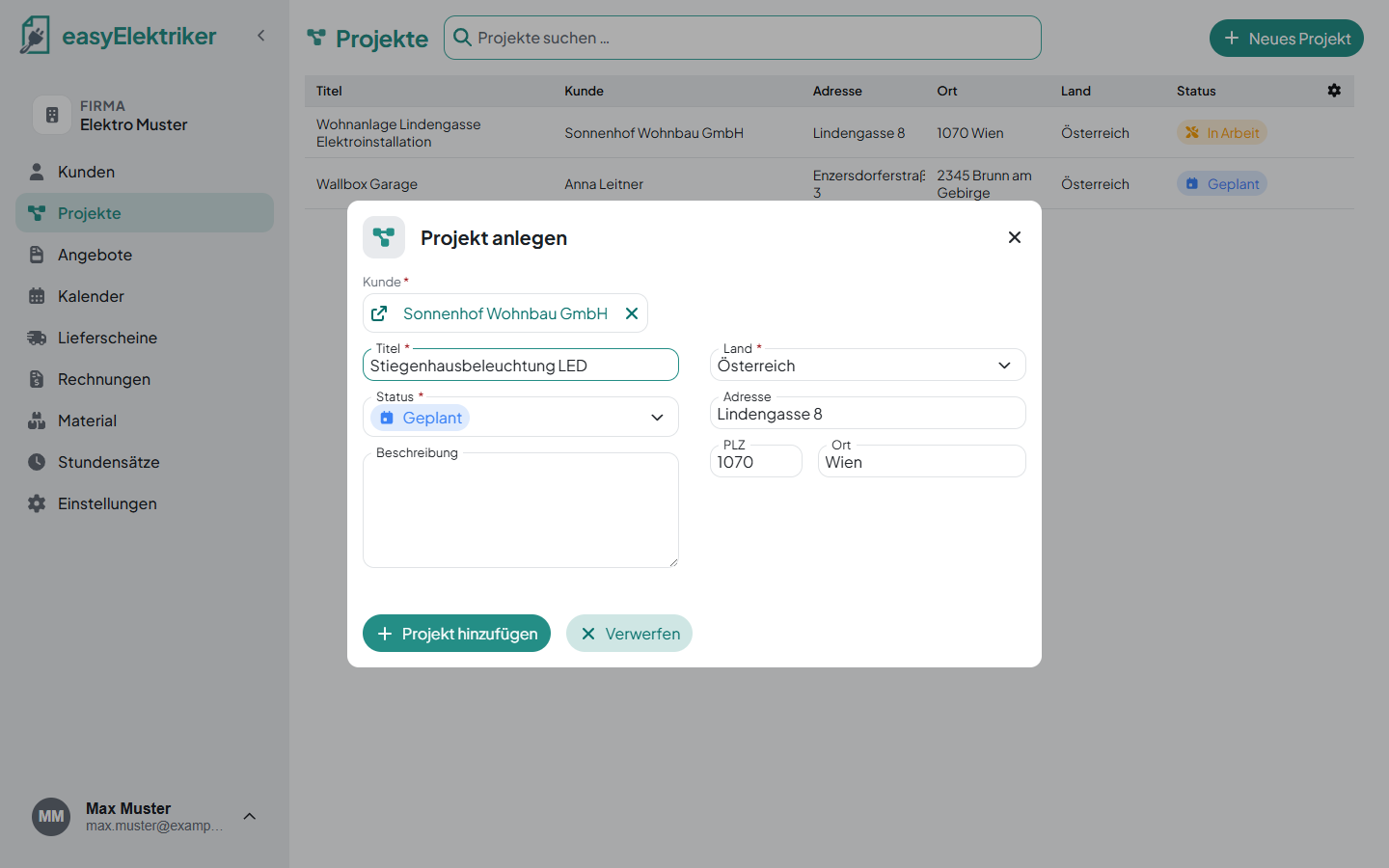
You can also create a project right in the customer with „Neues Projekt“.
Click a row in the project list to open the project. At the top you see the job site address and the customer with phone and email. Clicking the address opens Google Maps.
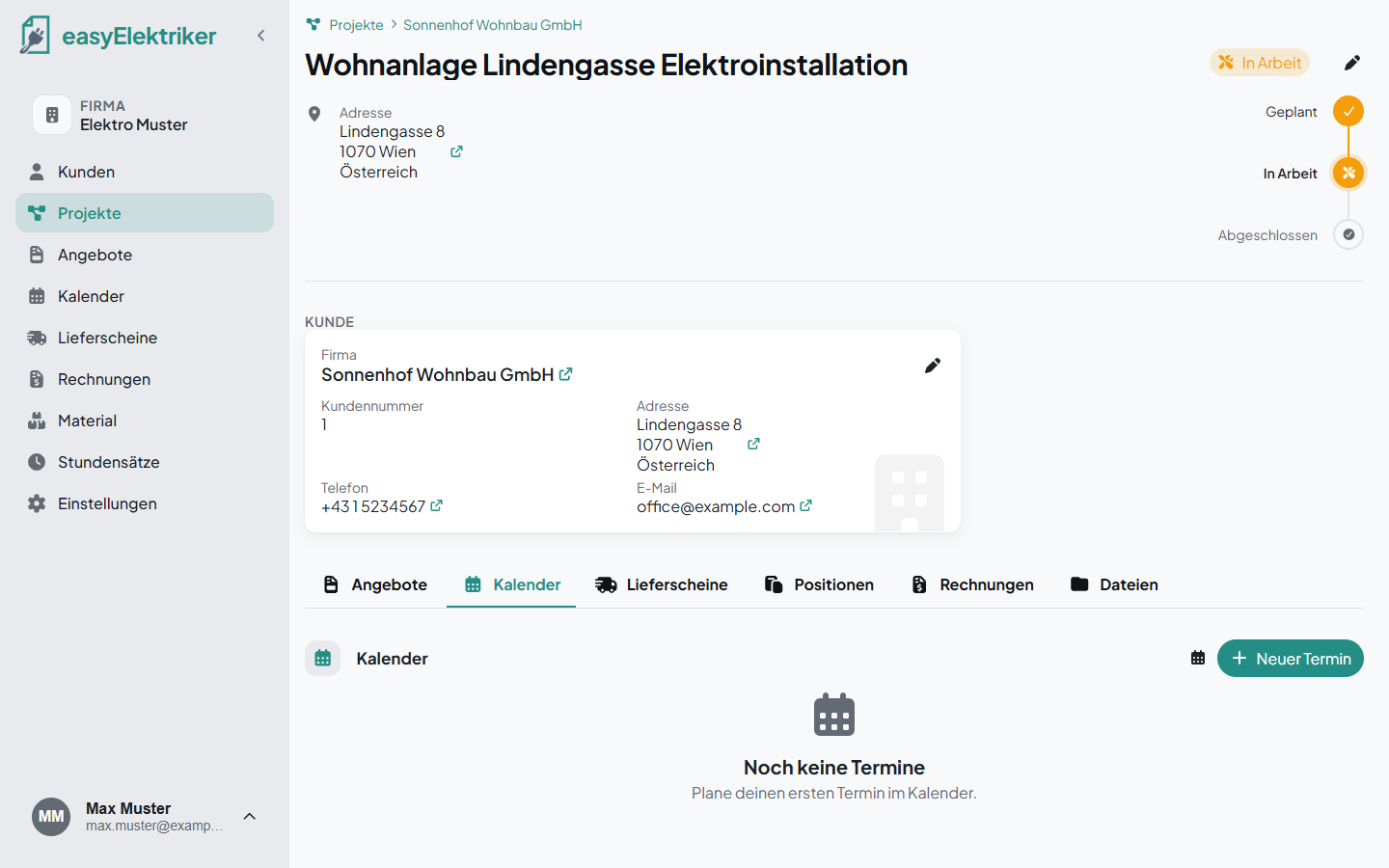
Below that you find everything about the job:
Angebote (quotes): Your quotes for this project.
Kalender (calendar): The appointments at this job site.
Lieferscheine (delivery notes): What you delivered and the work you did.
Positionen (items): Material and services that are not on a delivery note yet.
Rechnungen (invoices): All invoices for this project.
Dateien (files): Documents and photos for the project.
Here you can simply note work and material that you want to invoice later but that don't have a delivery note yet.
Example: You order a heavy cable or a large appliance delivered straight to the job site. There is no delivery note yet. Just add it under „Positionen“ and easyElektriker shows it to you in all delivery notes and invoices, so you can't forget it.
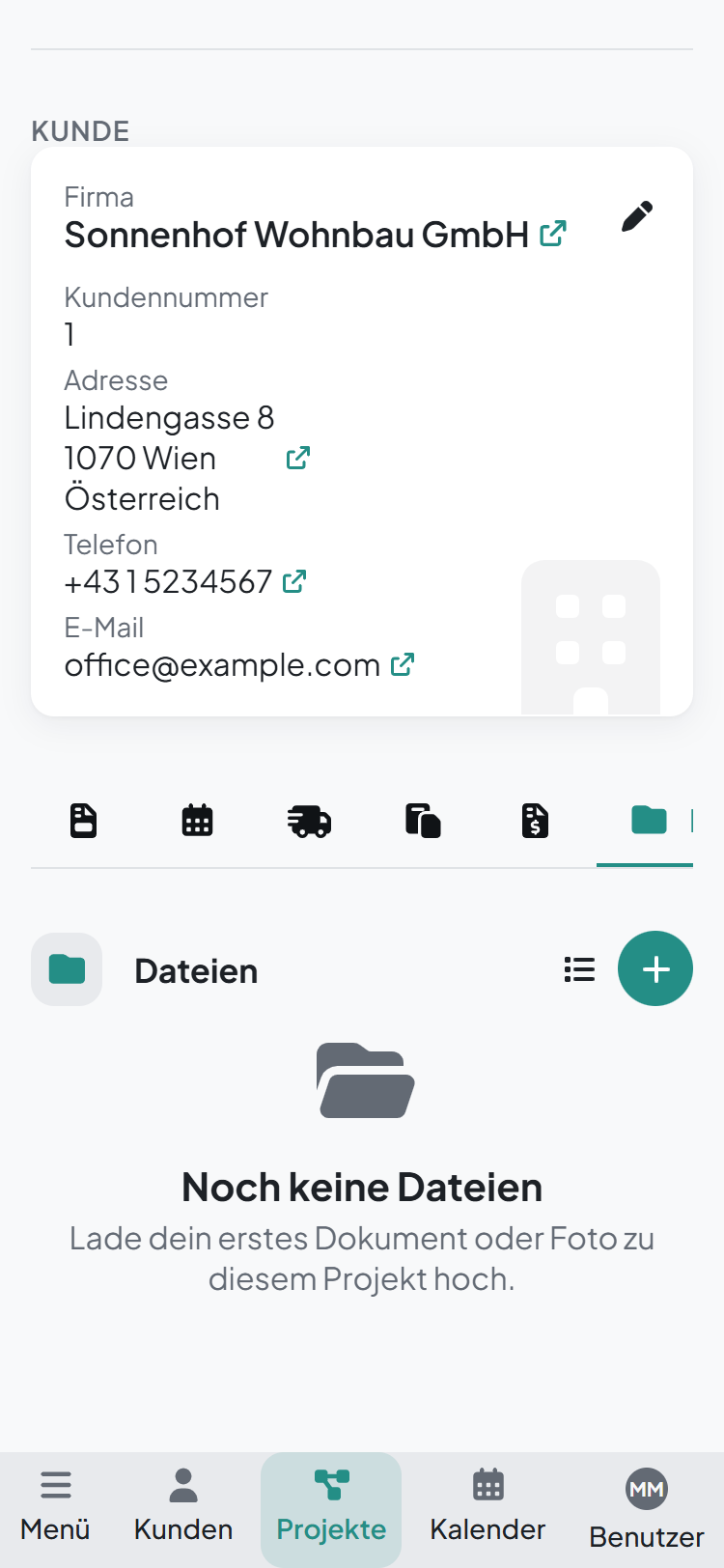
With the app you upload photos from your phone directly to the project. Under „Dateien“, tap the plus. That way everything is together, back in the office too.
Just add photos of the job site or reports, and they stay filed in the project even years later, so you can easily find everything again.
Every project has a status: Geplant (planned), In Arbeit (in progress), Abgeschlossen (completed) or Storniert (cancelled). You set the status yourself.
To do this, click the next step at the top right of the project page. You choose „Storniert“ with the small pencil.
Edit: On the project page, click the small pencil at the top right.
Search: Type into the „Projekte suchen …“ field at the top of the project list.
Show and hide columns: In the project list, click the gear at the top right and tick or untick columns.