Your company details, logo and bank details appear on all documents, for example quotes, invoices and delivery notes. You enter them in one place and change them there later too. It doesn't get any easier.
Open „Einstellungen“ (settings) in the menu on the left. The „Allgemein“ (general) tab is preselected.
Change the fields you need to update.
Click „Speichern“ (save) at the bottom right.
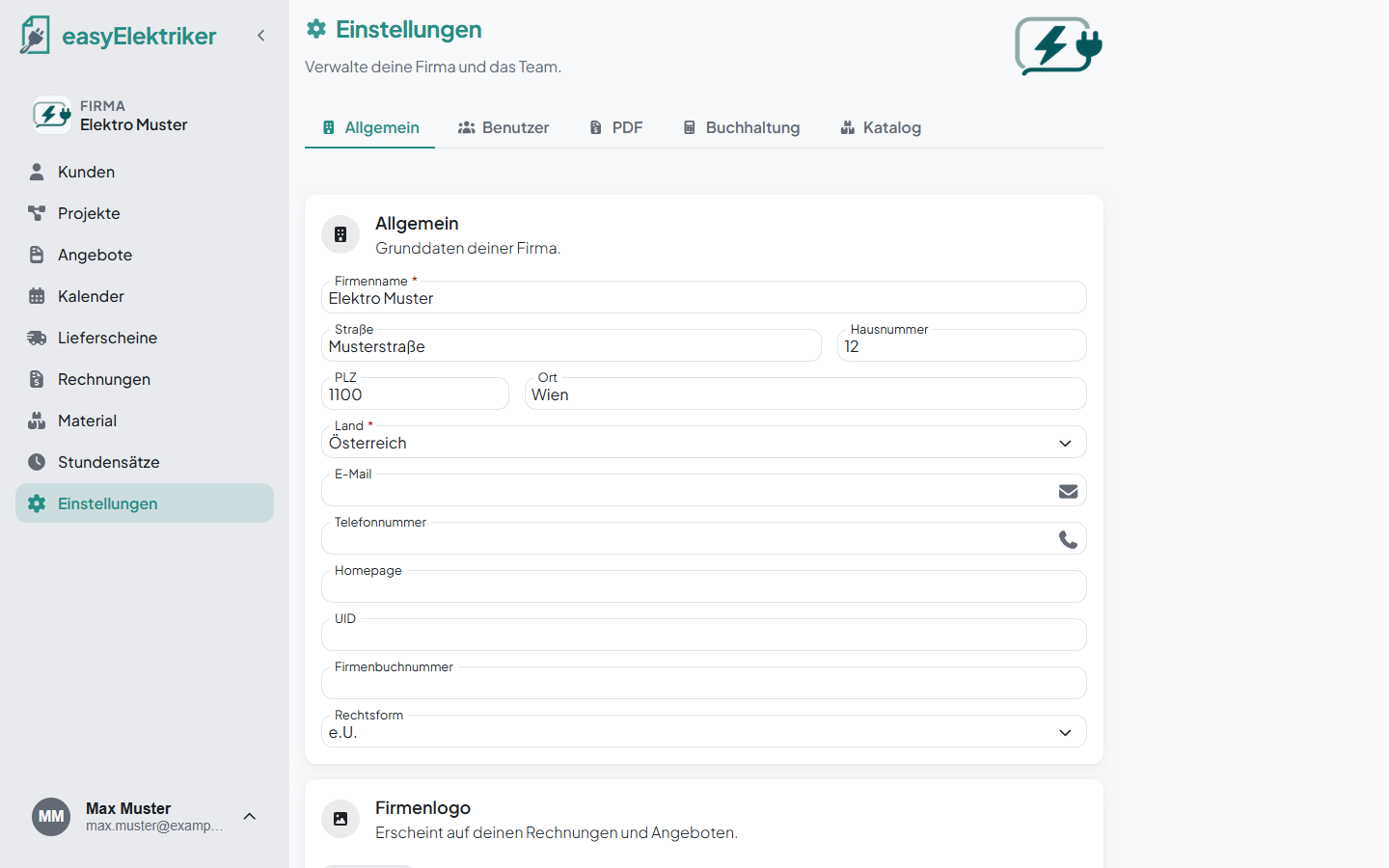

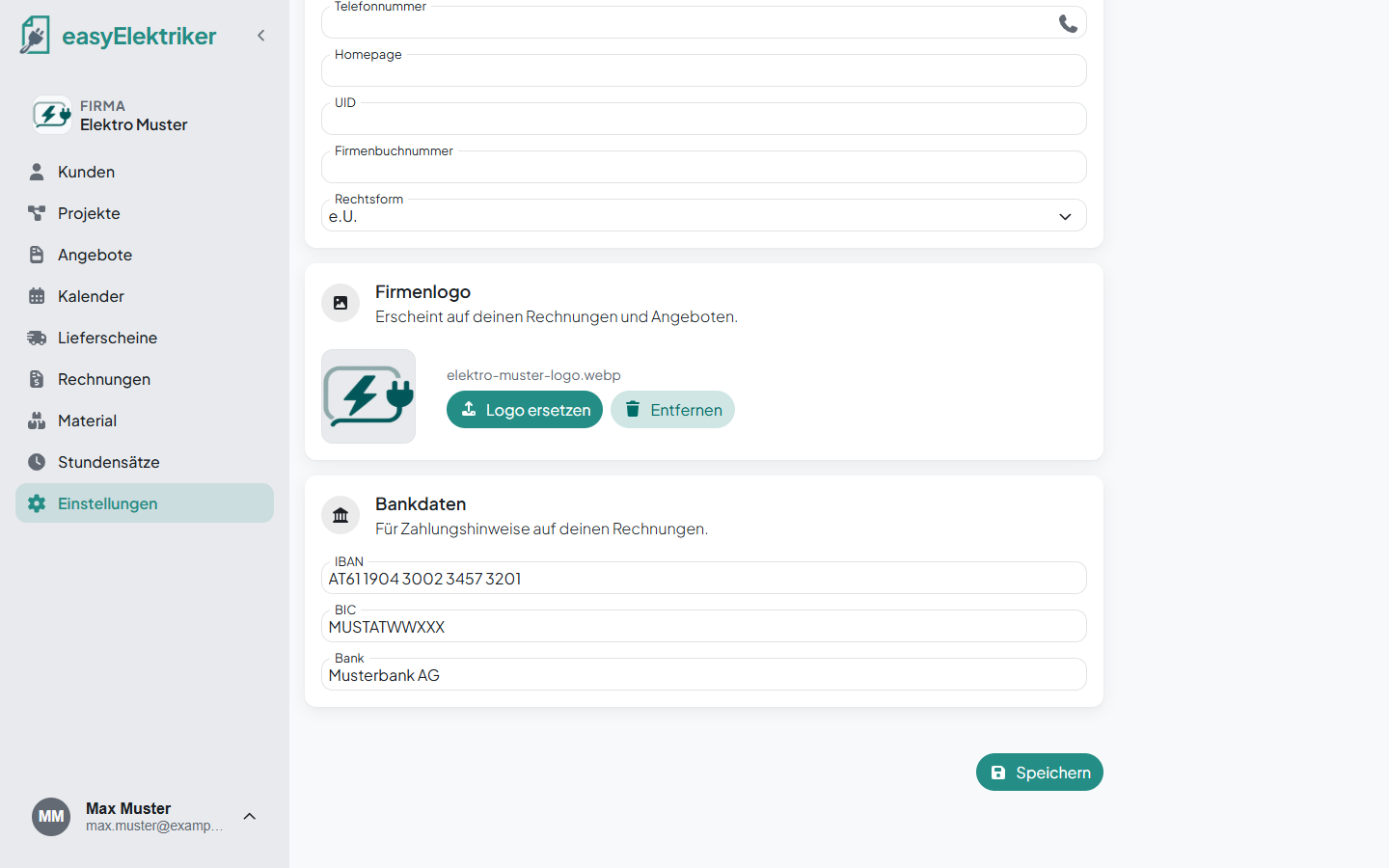
In the „Firmenlogo“ (company logo) section, click „Logo hochladen“ (upload logo). You can use any image file.
Simply handy: Use „Logo ersetzen“ (replace logo) to swap it later, or „Entfernen“ (remove) to take it off. Without a logo, our standard logo appears on the invoice.
Enter your IBAN in the „Bankdaten“ (bank details) section. The BIC and bank fields are below it.
With a valid IBAN, easyElektriker prints a QR code on your invoices. It contains the recipient, IBAN, open amount and invoice number, so your customer can scan it with their banking app and transfer the money.
In the „PDF“ tab, you set how your quotes and invoices look. The preview shows every change straight away. Then click „Speichern“ (save).
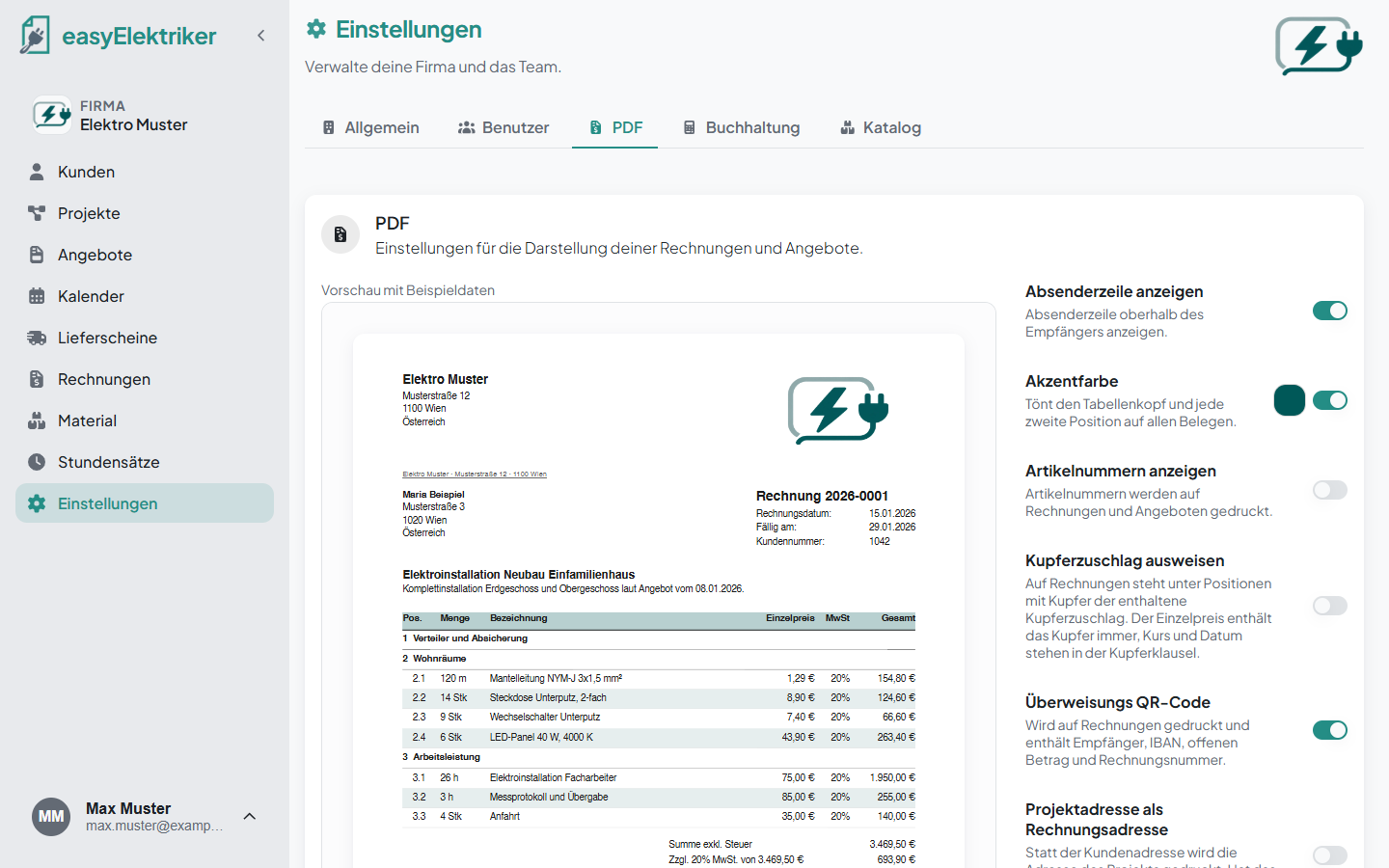
Absenderzeile (sender line): Shown above the recipient address. You can switch it off.
Akzentfarbe (accent colour): Tints the table header and every second item. You can switch it on.
Artikelnummern anzeigen (show item numbers): Prints the item numbers on quotes and invoices.
Kupferzuschlag ausweisen (show copper surcharge): On invoices, items containing copper show the copper surcharge included. The unit price always includes the copper, and the rate and date are stated in the copper clause.
Überweisungs QR-Code (transfer QR code): Prints the QR code for bank transfers on the invoice. You need an IBAN under bank details for it.
Projektadresse als Rechnungsadresse (project address as invoice address): The project address appears on the invoice instead of the customer address. If the project has no address, the customer address stays.
Schlusstext (closing text): A text that appears on quotes and invoices below the items. You can simply type it into the field.