You don't have to write your invoice from scratch. Everything that happened on site is already in the project: hours and material on your delivery notes, and material you ordered directly for the project. You add it to the invoice in a few clicks. It doesn't get any easier.
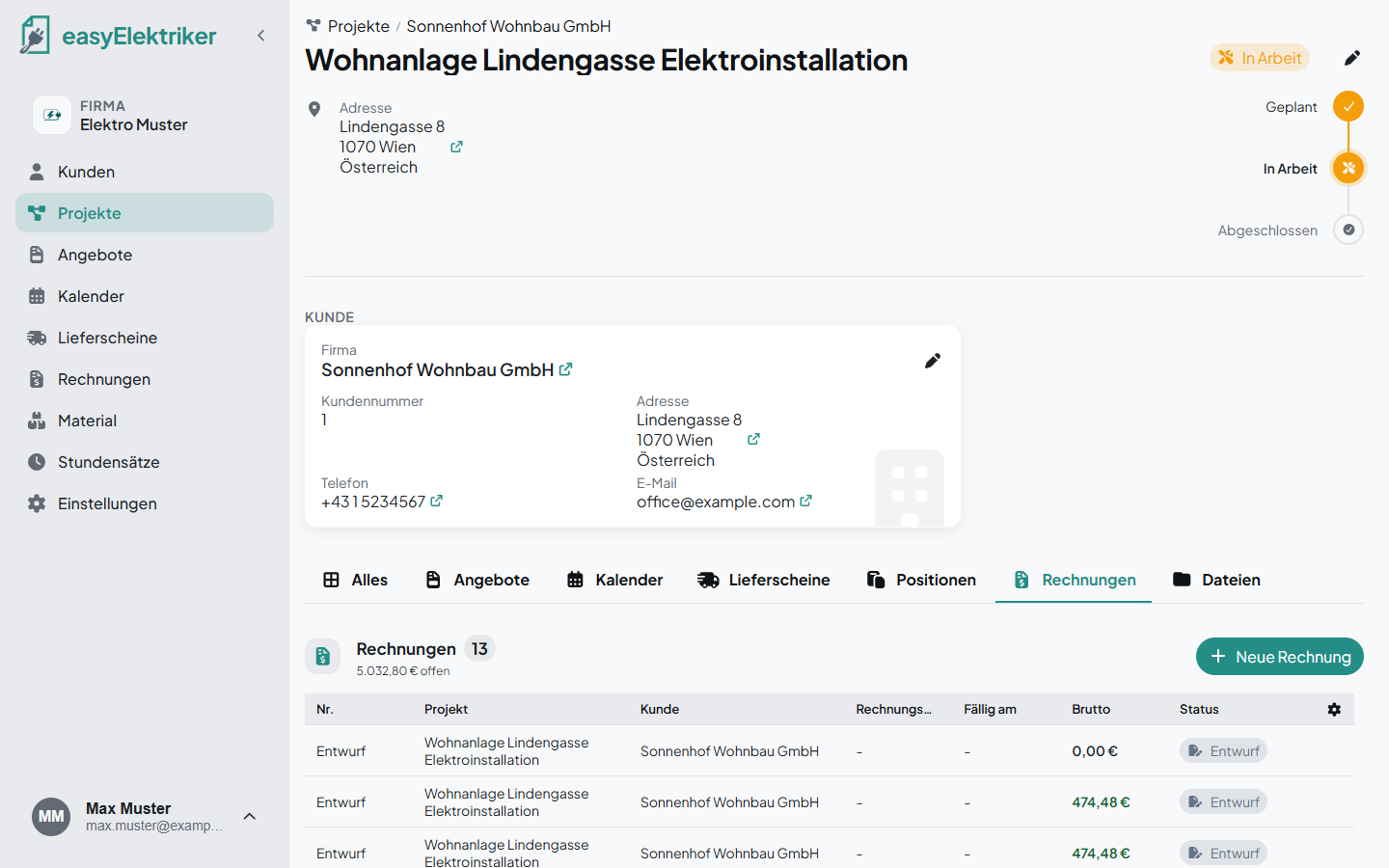
Open the project, switch to the tab „Rechnungen“ (invoices) and click „Neue Rechnung“ (new invoice). The invoice date and due date are already filled in.
Click „Offene Positionen übernehmen“ (take over open items). You see the material on the project and all completed delivery notes. Tick what should go on the invoice and click „Übernehmen“ (take over).
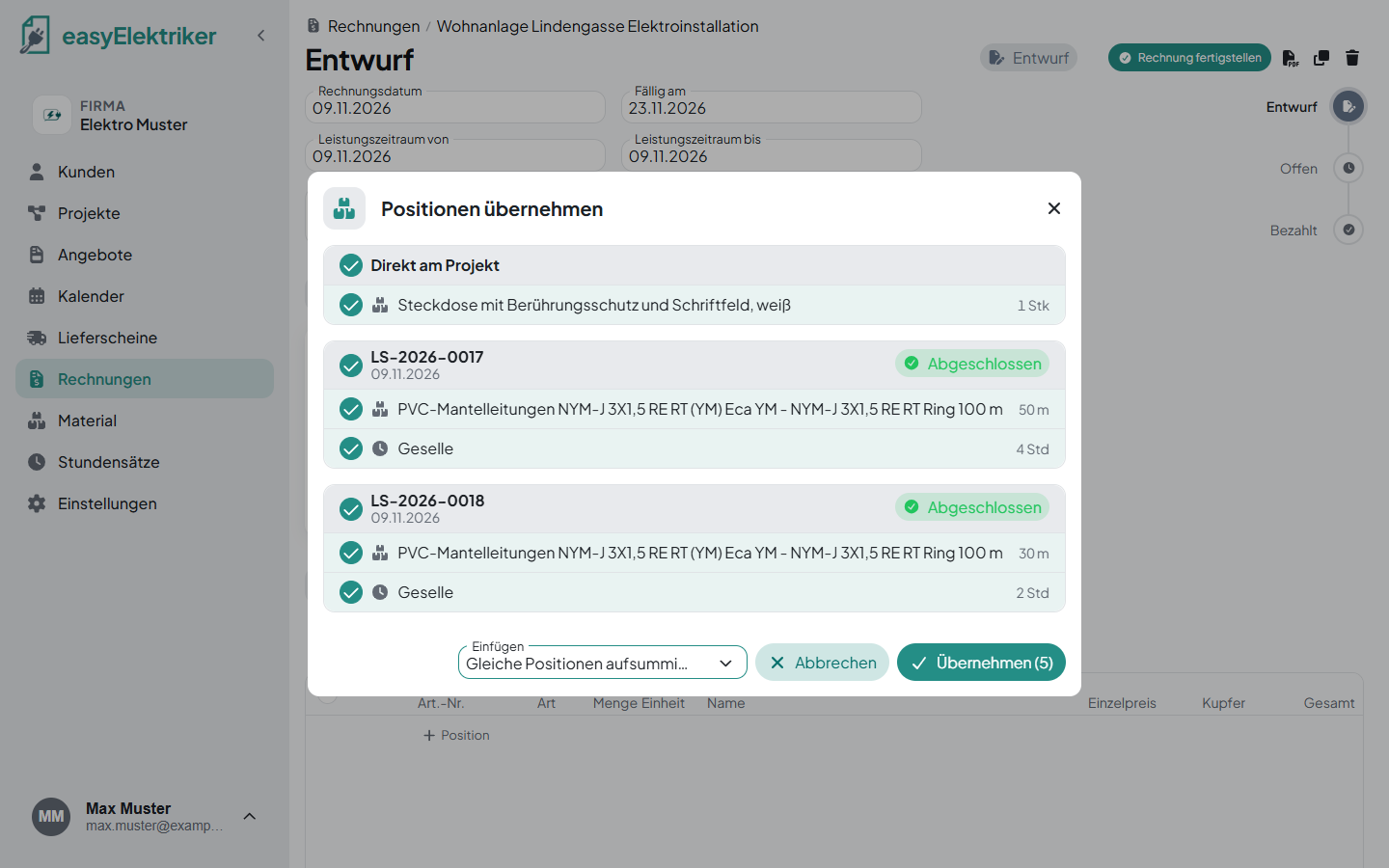
Simply handy: Under „Einfügen“ (insert) you choose how the items land in the invoice. „Lieferscheine als Gruppen einfügen“ (delivery notes as groups) is the default: each delivery note gets its own group. „Positionen ohne Gruppe einfügen“ (items without group) lists them one below the other. „Gleiche Positionen aufsummieren“ (add up identical items) combines identical items into one line.
Say you installed NYM cable on two delivery notes, 50 m on one and 30 m on the other. With „Gleiche Positionen aufsummieren“ the invoice shows one line with 80 m. Hours are added up the same way.
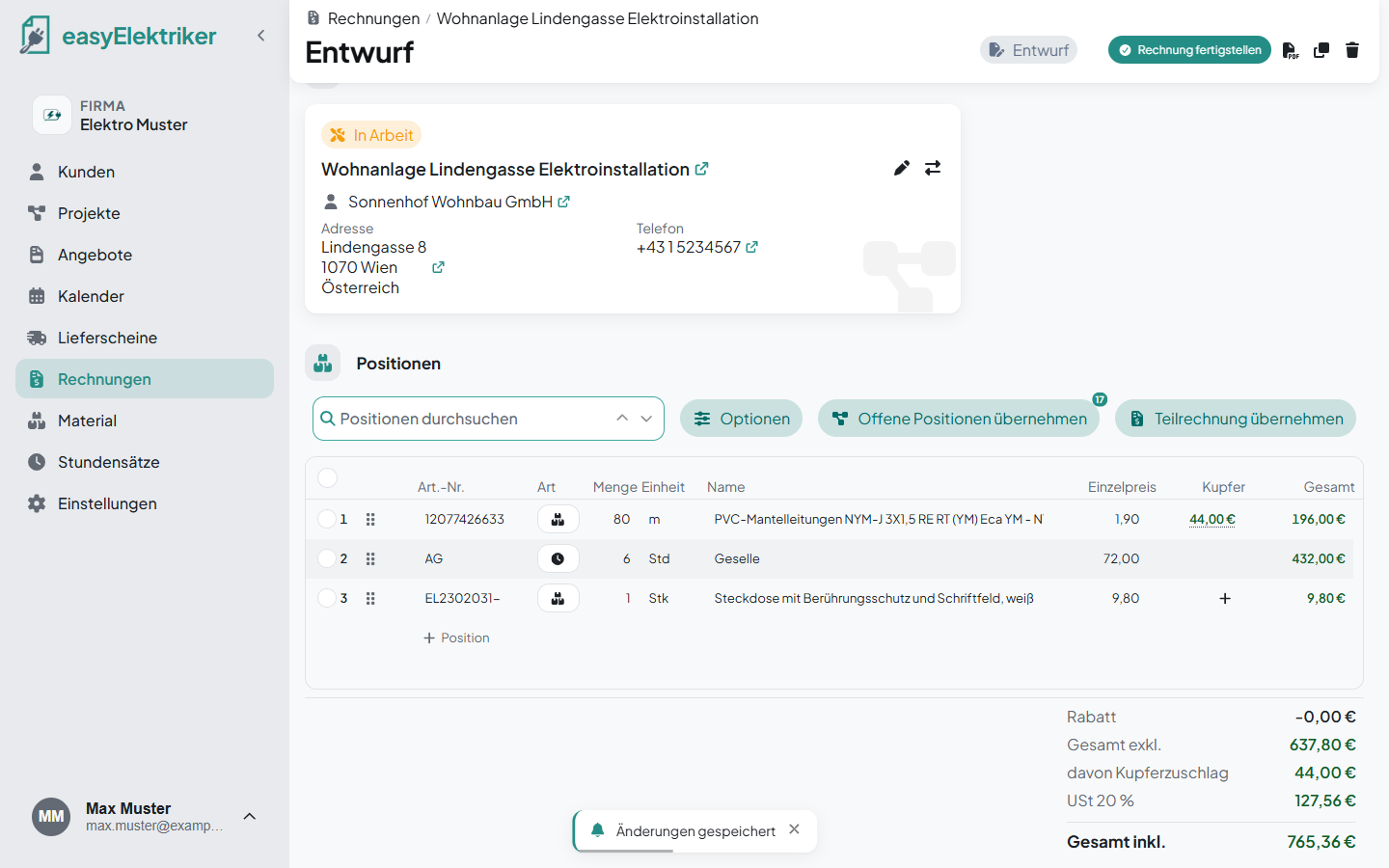
When „Speichern“ (save) appears at the top, click it. The items from the delivery notes count as invoiced afterwards.
Click „Position“ (item) below the list and type the name. easyElektriker suggests matches, grouped by delivery notes, „Direkt am Projekt“ (directly on the project), „Material“, „Stundensätze“ (hourly rates) and „Katalog“ (catalog). Pick a suggestion. The price and unit come from your material or hourly rate, you type in the quantity.
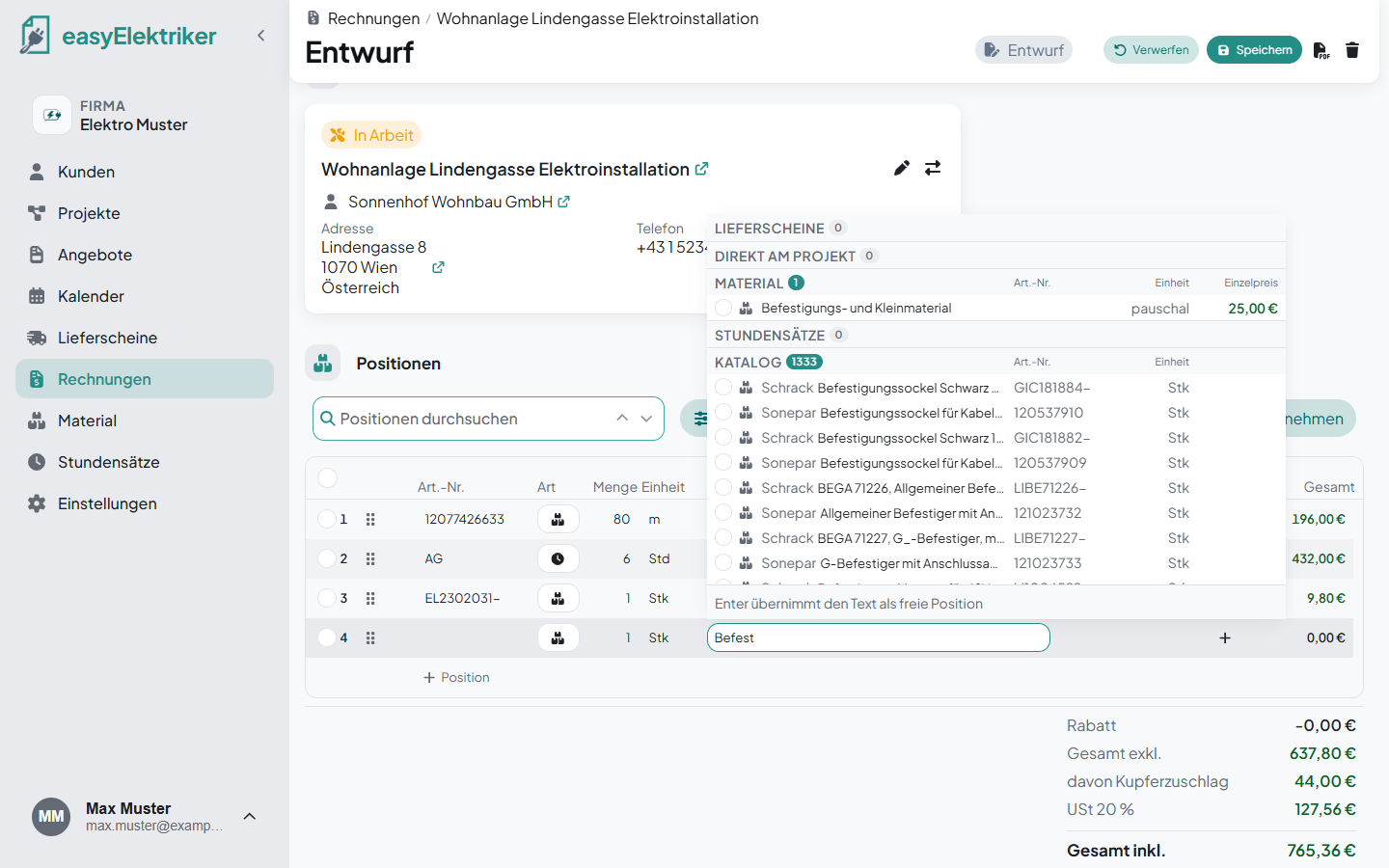
If you type text that appears nowhere, press Enter. It is then added as a free item.
Cables with a copper weight get the copper surcharge automatically. You see it in the „Kupfer“ (copper) column and under the totals as „davon Kupferzuschlag“ (of which copper surcharge). You don't need to enter anything.
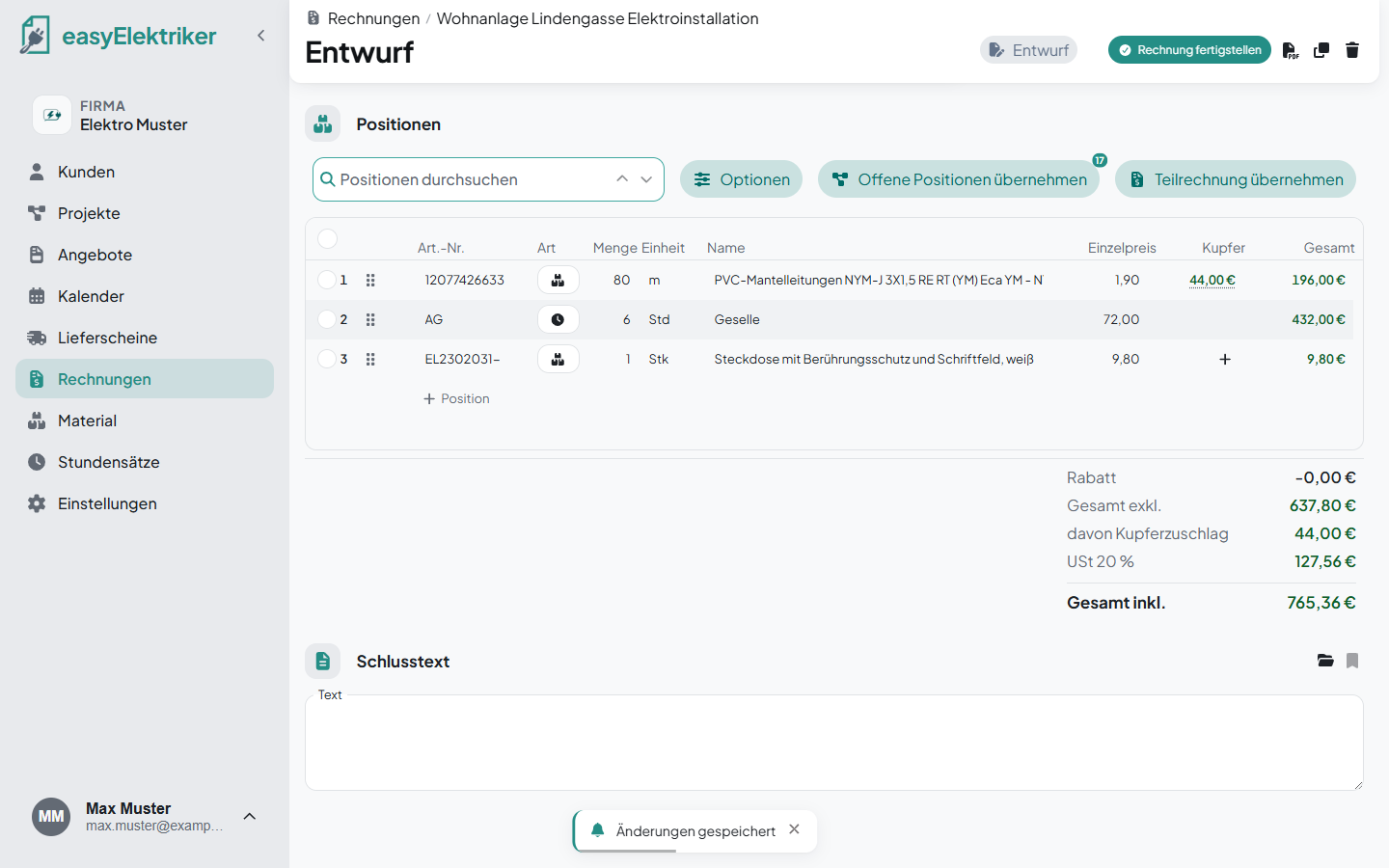
Nothing forgotten: You order a heavy cable straight to the construction site and enter it under the tab „Positionen“ (items) of the project. Under „Offene Positionen übernehmen“ it then shows up under „Direkt am Projekt“ and you can take it into the invoice.
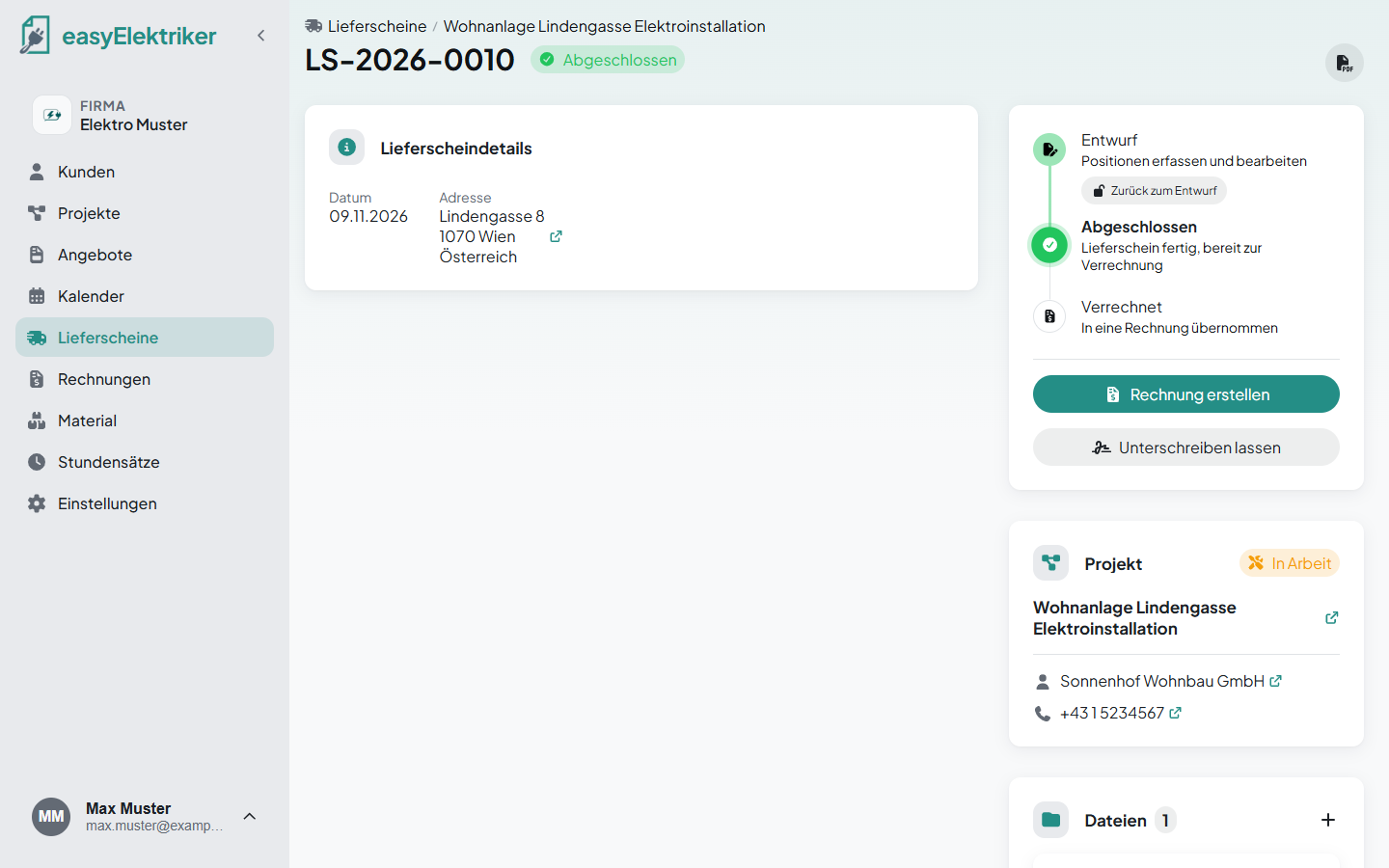
Simply handy: Once the delivery note is completed, click „Rechnung erstellen“ (create invoice) on it. Its items go straight into a new invoice.
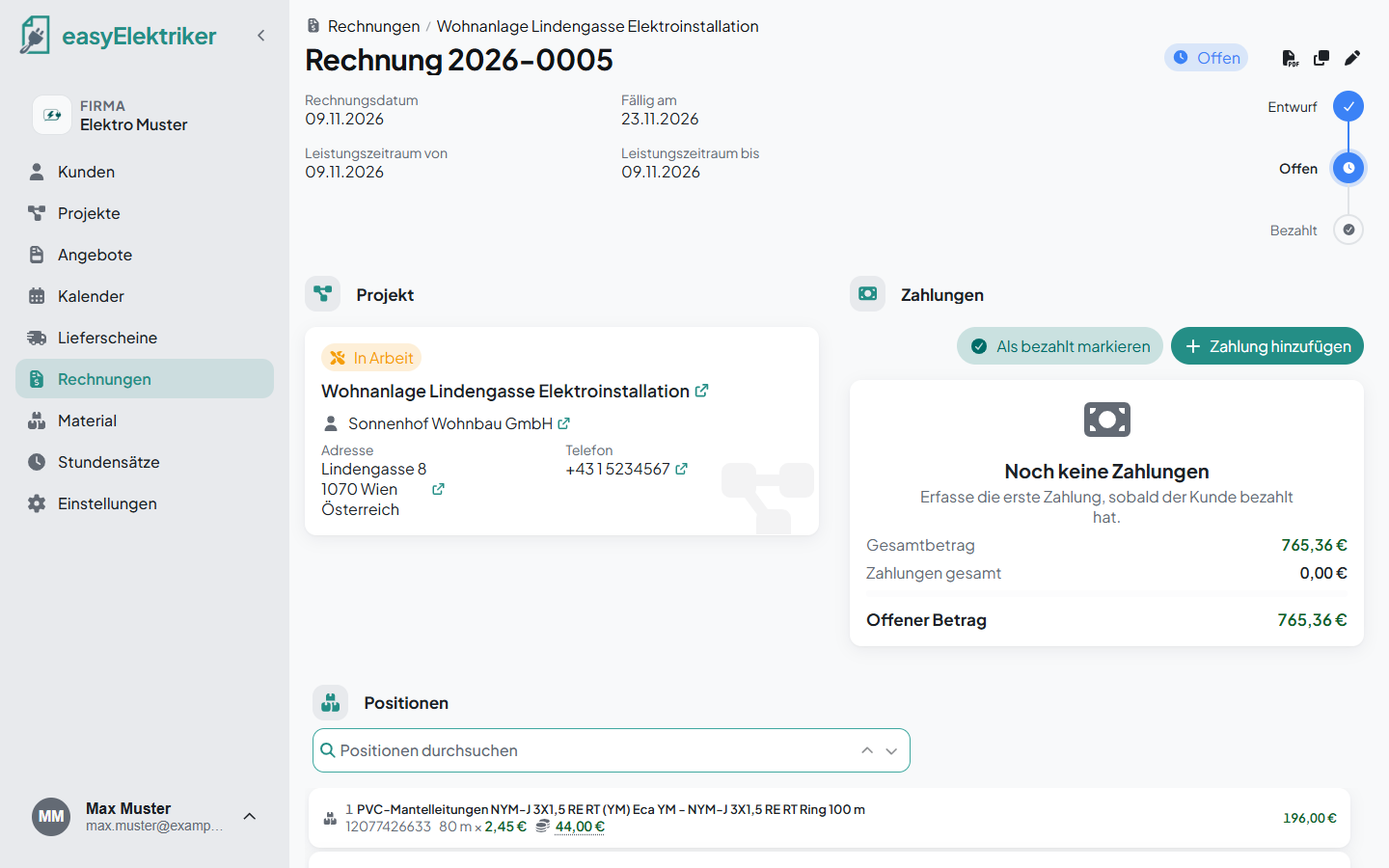
When everything is right, click „Rechnung fertigstellen“ (finish invoice) at the top. Note: easyElektriker assigns the invoice number at this point, and the invoice is shown as open. So check everything first.
You can do the same on your phone: in the project under „Rechnungen“ you find „Neue Rechnung“ (new invoice) and „Offene Positionen übernehmen“.