The delivery note („Lieferschein“) records what you worked on and installed at the job site. The usual way is one delivery note per job site and day: one person in the team writes it, it is completed in the evening, and the next day a new one starts. One click turns it into an invoice. It doesn't get any easier.
Open „Lieferscheine“ in the menu on the left and click „Neuer Lieferschein“.
Click the project.
The delivery note is ready. You don't need to enter the address or date, they come from the project. It works the same in the project under the „Lieferscheine“ tab or directly from an appointment in the calendar.

In the items, click the empty row „Suchen oder eingeben …“ and type a short code or a name, for example AG for a journeyman's working hour (Arbeitsstunde Geselle).
Click the suggestion.
Enter the quantity, for example 8 hours.
Click „Speichern“ (save) at the top.
Simply handy: easyElektriker suggests your hourly rates, your material and the whole wholesaler catalog. Tick several at once to add them together.
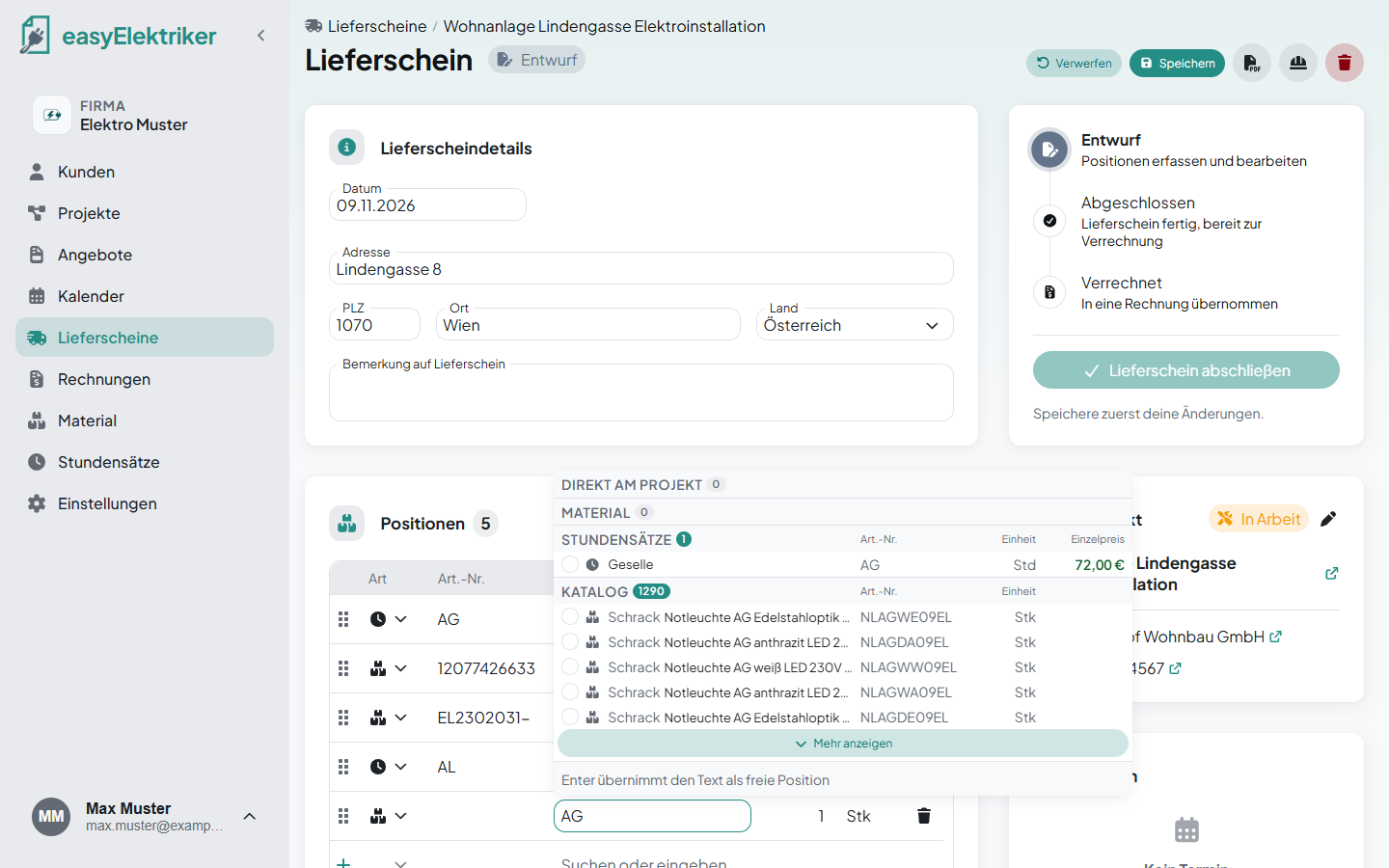
If something isn't in the list, just type it and press Enter. You don't need to enter prices, they are added on the invoice. If a price is missing there, the invoice reminds you.
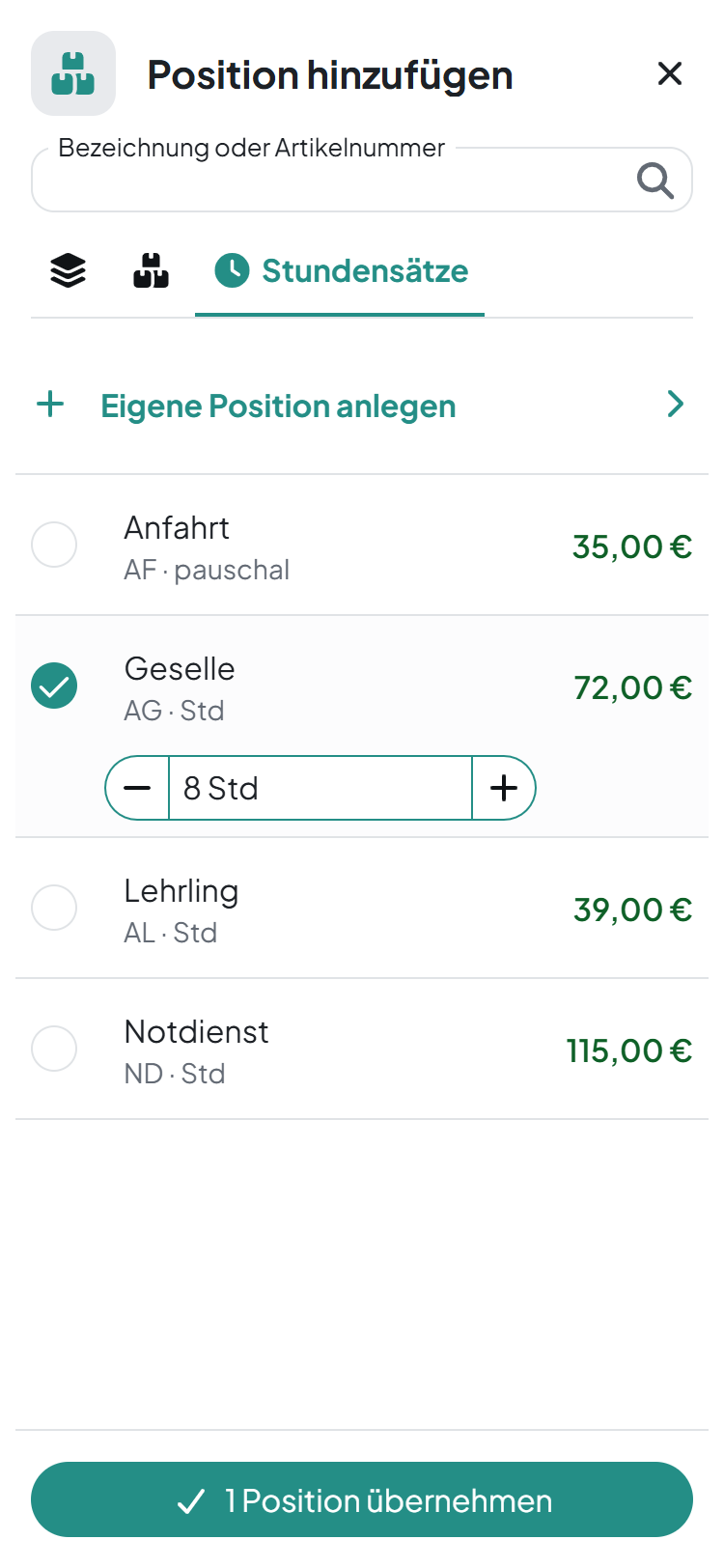
On your phone, tap „Position hinzufügen“ (add item), tick what you need and set the quantity right away. That way you write the delivery note right at the job site.
You order a heavy cable straight to the job site? Then enter it in the project under the „Positionen“ tab.
Simply never forget anything: easyElektriker suggests it at the top of the project's delivery notes under „Direkt am Projekt“, as long as it isn't on a delivery note yet.
In the evening, click „Lieferschein abschließen“ (complete). If the customer is there, they sign best with a finger on your phone or tablet. Enter their name and click „Unterschreiben und abschließen“ (sign and complete). If nobody is there, simply click „Ohne Unterschrift abschließen“ (complete without signature).
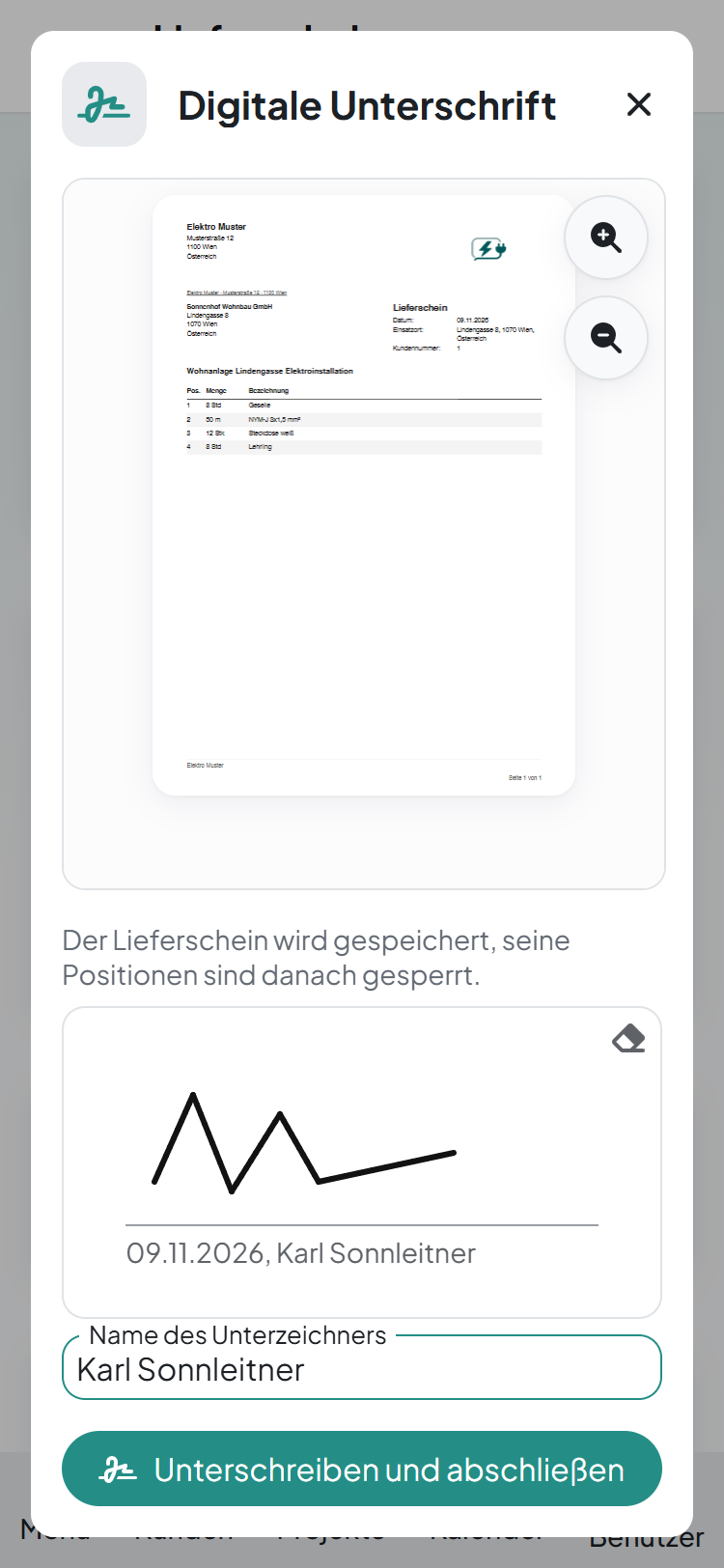
After that, the delivery note gets its number and the items are locked. You'll find the signed delivery note as a PDF under the files.
On the completed delivery note, click „Rechnung erstellen“ (create invoice). easyElektriker creates a draft invoice with all items, the prices come from your hourly rates and your material. The delivery note is then marked „Verrechnet“ (invoiced).
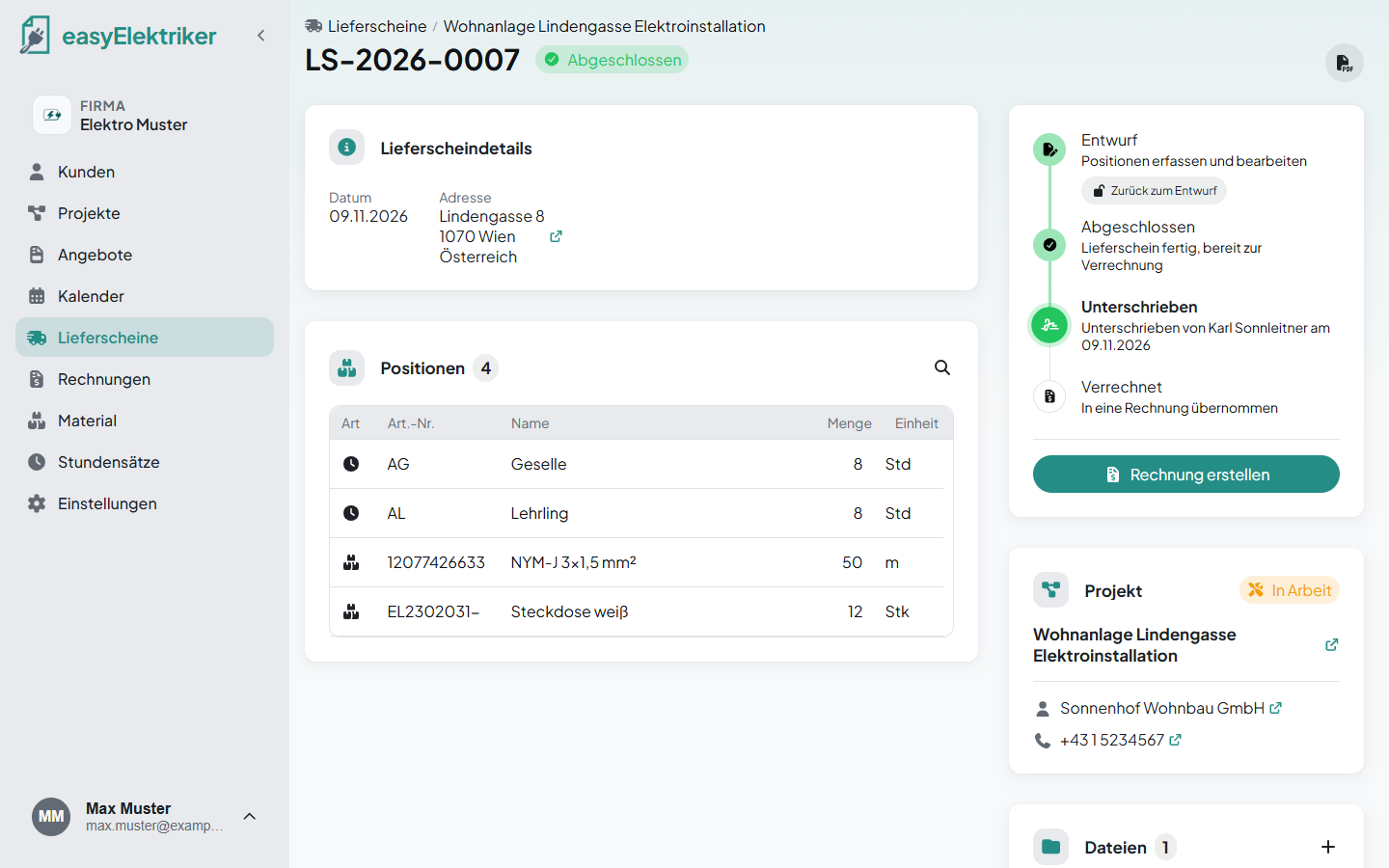
Correct: On the completed delivery note, click „Zurück zum Entwurf“ (back to draft). Then you can change everything again. When you complete it next time, the customer can sign again.
Delete: Delete a draft with the bin at the top.
Print and share: Click the PDF icon at the top. There you can share, download or print the delivery note. On your phone, you'll find it under ⋮.
Add an appointment: On the right under „Termin“, click „Termin anlegen“. The address is already filled in.
Photos and documents: Under „Dateien“, click „Hochladen“ (upload).
For subcontractors: With „Extern teilen“ (share externally), your subcontractor enters their work themselves.